

Montana Secretary of State business search is the free lookup that runs inside the online filing portal, and it is the first screen most readers meet when they need a company record. The same site accepts annual reports, amendments, and new registrations, so a search and a filing share one login and one payment window. A guest can search without a profile; a registered user can also save a record and start a filing from it.
This page follows the portal itself: the guest route, the filters that narrow a list, the tabs inside an entity record, the filing actions that appear beside it, the certificate verification tool, and the charges the office publishes for faster service. It is written for a reader who is already on the site and wants to know which control does what.
How the Montana Secretary of State Business Search Works
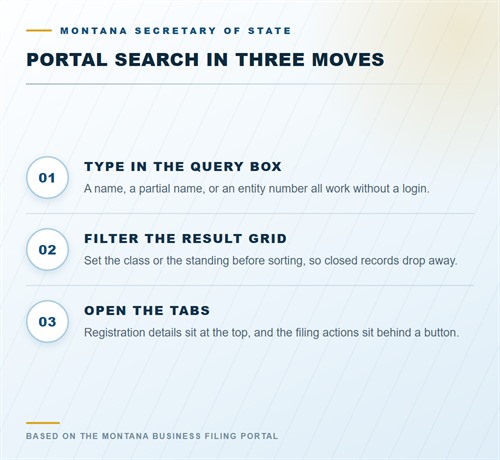
The landing screen offers a single query box and a button. A visitor types a business name or an entity number and receives a grid of matches, with no profile needed. A user who signs in gains a saved-records area, a payment history, and the ability to begin a filing from the record on screen. The index opens from Montana Secretary of State business search on the front page.
Guest Search and Signed-In Search
A guest can look up a company, open its record, and read the document list. Signing in adds a dashboard where recent searches and filings sit together, which is useful for a person who works with several companies. The dashboard also keeps a receipt for each payment, and that receipt is the reference for a later question about an order.
The Query Box
The box accepts a full legal name, part of a name, or an entity number. A partial word returns a longer list and a precise phrase returns a shorter one, and both shapes are useful. Punctuation matters at the margin, so a name with an apostrophe may need a second attempt without it. A query that returns nothing is not proof that the company never registered.
What a Result Row Carries
Each row lists the entity name, the number, the type, the city, and the standing. The row is a summary rather than the record, so a reader should open the entry before drawing a conclusion. A closed company with a familiar name can sit directly above a live one, and the standing column is what tells them apart.
Filters That Narrow a List
The result screen allows a reader to sort and to filter by type or by standing. A broad word such as a city name can return hundreds of rows, and the filter is what makes that list usable. The controls are simple by design, and they work on the current register rather than on a downloaded copy. Sorting and filtering do different work.
Filtering by Type
The type filter separates a limited liability company from a profit corporation, a nonprofit, a limited partnership, a cooperative, and a business trust. A reader who is checking a supplier usually knows the class from the contract, and the filter removes the near matches from other classes. The class also tells a reader which annual report form applies and which charges belong to the file.
Filtering by Standing
The standing filter is the fastest way to remove closed records from a long list. An active-only view hides the dissolved companies that share a word with the one being checked. A reader who is researching a name, rather than a business, should leave the filter open, because a closed record still shows that the word was used before.
Inside an Entity Record
Opening a row loads a page with the registration details at the top and the filing tools behind a button. The page is arranged in blocks rather than in one long list, and each block answers a separate question. A reader who reads the blocks in order avoids the mistake of quoting an old address as the current one.
The Office’s Own Notes
The record also carries the office’s own notes, such as a delinquent mark or a reinstatement date. Those notes are the part a certificate repeats, so a reader who plans to order paper should read them before placing the order. A note that contradicts an older document is usually the newer fact.
Registration Details
The top block gives the legal name, the entity number, the type, the formation date, the standing, the principal address, and the registered agent with a Montana street address. A mailing address may appear beside the principal one, and the two can differ. A reader who needs the agent rules behind the address can follow the Montana registered agent page.
Documents and Filing Actions
The document area lists the papers the office has accepted, with a type and a date for each. Some items can be downloaded directly, while an older paper may need an order. The filing actions button opens the forms that fit the entity, which is how an amendment, an annual report, or a dissolution is started from the record rather than from the forms page.
Entity Types and the Form Each One Files
The portal groups filings by class rather than by the change being made, so a reader should know the class before opening a form. The class decides the document name, the charge, and the report that follows. A reader who picks the wrong group is sent back to the start rather than to the right form.
Limited Liability Companies
An LLC files articles of organization, and a series LLC names each series member in the same document. An amendment, a restatement, and a correction are separate forms with separate charges. A reader who needs the record fields in more detail can follow the Montana LLC records page.
Corporations and Nonprofits
A profit corporation files articles of incorporation, and a nonprofit files a shorter version with a purpose clause and no shares. A business trust sits beside them under its own heading. Each one reports every year, and each one can amend its articles, merge, or dissolve through the portal.
Partnerships, Cooperatives, and Brands
A limited partnership files a certificate, a limited liability partnership files a registration, and a cooperative files articles under its own chapter. An assumed business name is a registration rather than a formation, and it can be filed by an entity or by a sole proprietor. The brand entry then sits beside the legal names in the same result list.
Documents the Portal Publishes
Not every paper on a record can be downloaded, and the difference is worth knowing before a closing. The office publishes recent filings as files and keeps older items behind an order. The record itself shows which route applies, so a reader can plan without calling.
Formation Papers
The articles that created the company are usually available as a copy, and they carry the original filing date. A reader who needs the exact wording for a contract should order a certified copy rather than rely on a download. The certified version carries a stamp that a counterparty can verify.
Reports and Amendments
Annual reports and amendments appear in the document list with a date beside each one. A recent report can be viewed as a file, while an older one may need an order. The list is the index for a diligence file, and a reader should copy the dates rather than describe them from memory.
Records a Buyer Should Order
A buyer usually orders three items: the formation document, the latest report, and a certificate of existence dated for the closing. The first two show what the company filed, while the third shows the standing on a day a bank can read. A certified copy of an amendment belongs in the set when the name or the ownership structure changed during the review.
Filing Through the Same Portal
A filing begins either from the forms page or from the record itself. The portal asks for the entity number, the document type, and the payment, and it returns a confirmation when the office accepts the paper. The confirmation is the proof that the filing arrived, and it belongs with the company’s own records. A rejected paper comes back with a reason rather than a refund.
Forms and Fees
The forms page groups the applications by class, and each form names the charge beside it. A reader should open the form for the exact class, because a corporate amendment and an LLC amendment are separate documents even when the change is the same. The payment screen accepts a card or an electronic cheque, and the receipt stays in the account.
Processing and Expedite
Routine processing runs in the order the office receives the papers. A reader who needs a document the same day can pay for a faster lane, and the two published options sit in the fee table below. The faster lane moves the review, not the postal time, so a mailed request still carries transit on top of it.
Accounts, Receipts, and Records
An account is optional for a search and useful for a filing. It keeps a record of what was submitted, what was paid, and what the office returned. A reader who files for several companies can keep them in one place, which shortens a later question about a receipt.
The Dashboard
The dashboard lists the entities tied to the login and the filings started from it. An unfinished application sits there until it is submitted or discarded, and a completed one moves to a history. A reader who shares an account with a colleague should agree on naming, because the dashboard does not label a filing by the person who began it.
Payment History
Each payment leaves a receipt with a date and an amount. The receipt is the reference the office asks for when a document does not arrive. A reader should download the receipt at the time of payment rather than rely on the account staying open.
Verifying a Certificate
The portal includes a verification tool for a certificate the office has issued. A reader enters the number printed on the paper and the site confirms whether the document is genuine. A bank or a registry that receives a copy can run the same check in a minute. The tool confirms the paper, not the business. The two checks answer different questions, and a careful file keeps both.
What the Check Cannot Do
The check cannot prove that the company still holds the standing printed on the paper, and it cannot confirm an owner or a licence. It reads the number against the office’s own issue record, which is a narrow question. A document that fails the check should be treated as unverified until the office states why.
Portal Fees
The lookup itself carries no charge, and the amounts below cover the services attached to a record or an order. Montana publishes a single schedule for these items, and several of them are optional. A reader who plans a filing should add the document charge to the service charge before deciding on a route.
| Portal service | Fee |
|---|---|
| Business search | $0 |
| Certified copy request | $10 |
| Certificate of fact | $15 |
| Copy returned by fax | $5 |
| 24-hour processing | $20 |
| 1-hour processing | $100 |
| Name reservation | $10 |
| Assumed business name registration | $20 |
Frequently Asked Questions
Each question below comes from a reader using the portal rather than reading a summary of it.
Do I need an account to search?
No. The query box works for a visitor with no profile. An account is needed only to save a record, start a filing, or keep a receipt.
Why does my exact name return nothing?
The index stores the name as it was filed, so punctuation and spacing can differ. Try the distinctive word alone, then add the ending if the list is too long.
Can I download a filed document?
Some papers are available directly from the record, while an older item needs an order. The document list shows which route applies to each entry.
How long does an online filing take?
Routine review follows the queue, and a faster lane is available for a charge. A mailed paper adds postal time in both directions.
What does the verification tool prove?
It confirms that a certificate was issued by the office. It does not refresh the standing, so a reader should run a current search beside it.
Where is the entity number on the portal?
It sits in the result row and at the top of the record, and it is printed on every certificate. Copy it from the state page rather than from a directory.